
Companies that have subscribed to the Valtti service plan can enable automatic ordering of Valtti Cards.
When automatic renewal is enabled, the system automatically creates a new card order for an employee when their current Valtti Card is approaching its expiration date.
Please note: If you enable automatic renewal, make sure that employee information and delivery address details are kept up to date. The company is responsible for ensuring that employee and order information is accurate and current.
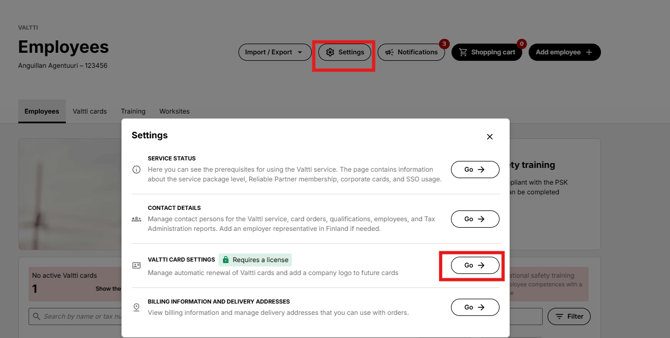
You can enable automatic Valtti Card ordering in the Valtti service by selecting "Settings", then "Valtti Card Settings", and clicking "Enable automatic renewal".
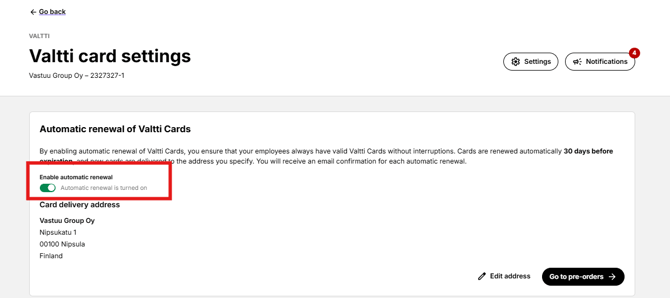
After activation, the Valtti service reviews the company's active Valtti Cards once per day. If there are cards expiring within the next 30 days, the service creates a pre-order for those cards. At this stage, the contact person of the Valtti service receives an email notification about the created pre-order.
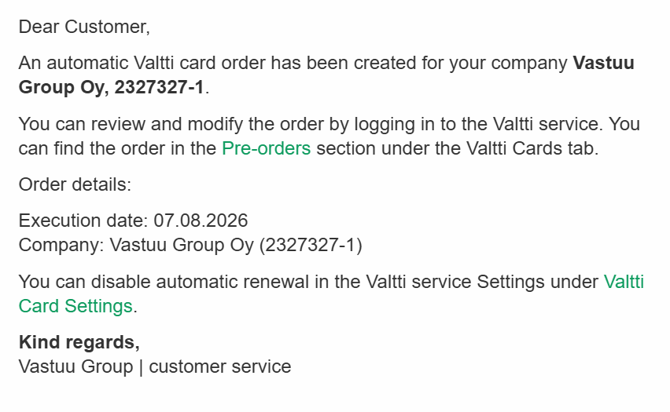
The pre-order is sent to production after 7 days.
Cards expiring on the same day are grouped into a single pre-order. If additional cards are due to expire on the following day, a separate pre-order will be created for those cards.
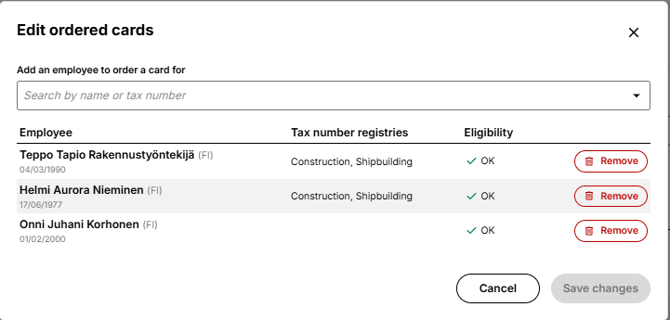
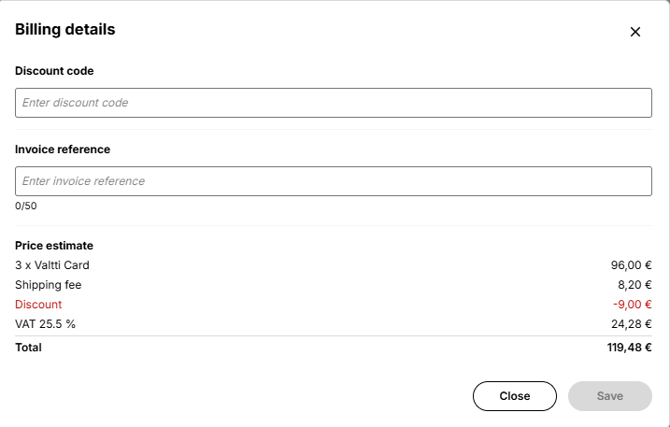
During the 7-day pre-order period, you can:
- Remove cards
- Add cards
- Edit the delivery address
- Add an invoice reference or a discount code
- Cancel the entire order
Orders can be edited by clicking the pencil icon.
Pre-orders are displayed on their own tab in the Valtti service.
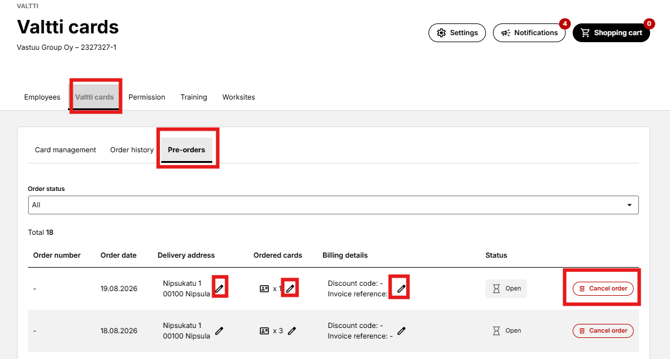
On the Pre-orders tab, the date shown in the "Order Date" column indicates the day when the order will be finalized and prepared for production. After this point, no further changes can be made to the order.
When a pre-order is converted into a regular card order, the Valtti service contact person receives an order summary by email.
Once the order has been successfully processed, a corresponding entry is also added to the Order History tab in addition to the Pre-orders tab.