NOTE! This guide covers the new worksite pre-registration feature in Valvoja Premium. Instructions for the previous Worksite registration feature can be found here.
-
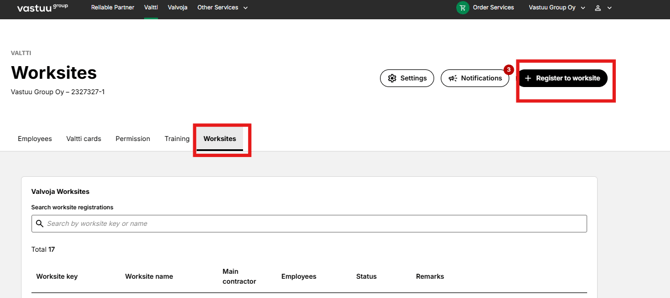
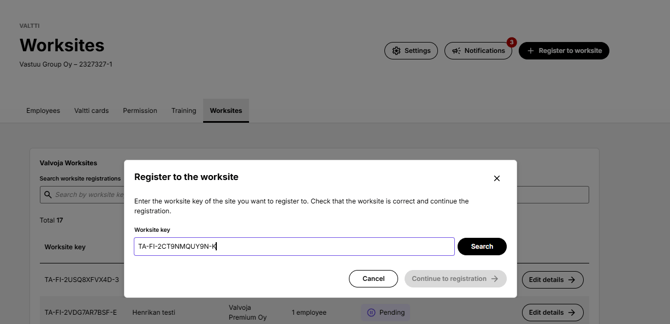
You will receive a worksite key from the client or main contractor. Use the key to register for the worksite in the Worksites section of the Valtti service by clicking Register for a worksite.
-
Please note that employee information must be entered in the Valtti service.
-
Please also note that currently, pre-registration is only available for companies with a Finnish Business ID.
-
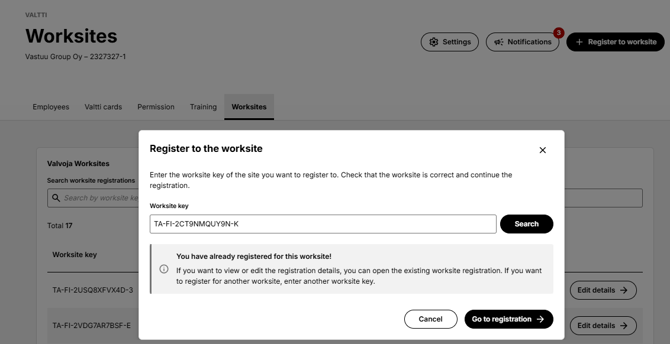
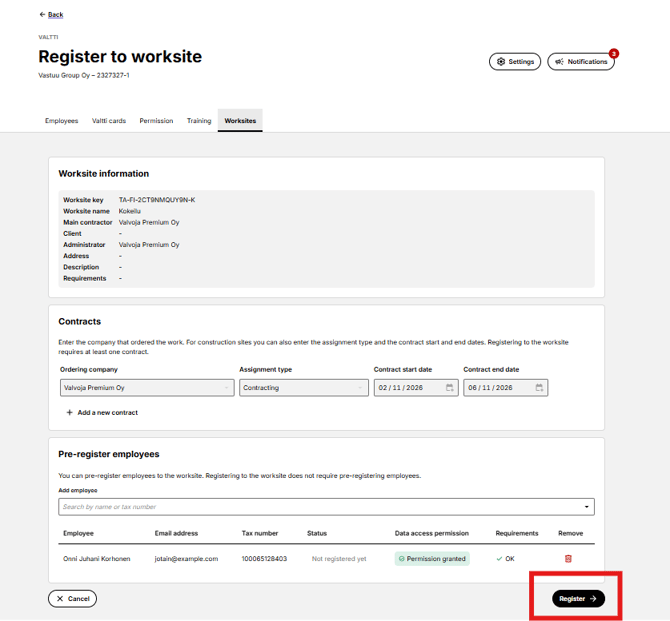
Check the worksite details and click Go to registration.
-
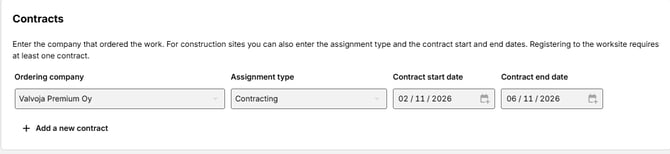
Start by adding a contract. Add the company that commissioned the work by searching for it using either the company name or Business ID. Then add the assignment type and the start and end dates of the contract.
-
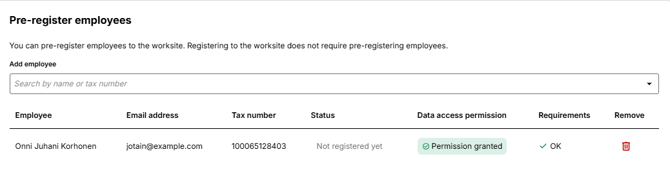
Next, pre-register the employee(s) using the search menu. You can search by name or tax number. Click the search result to add the employee to the pre-registration list.
-
Finally, click Register in the bottom-right corner.
Statuses of pre-registered employees
- Pending = Waiting for approval from the client or main contractor.
- Not registered yet= The employees have been selected for the list, but the Register button has not yet been clicked.
- Approved = The employee's pre-registration for the worksite has been approved by the client or main contractor.
- Removed = The employee has been removed from the worksite pre-registration by the client or main contractor.
- Rejected = The employee's pre-registration for the worksite has been rejected by the client or main contractor.
Data access permission statuses
- Permission granted = The criteria related to the employee's pre-registration are met.
- Requirements not met = The criteria related to the employee's pre-registration are not met.
- You can check the requirements by clicking the notification.
- The requirements usually relate to a missing Valtti card, required document or qualification.
- Please note that the required criteria do not have to be met immediately when registering. The necessary actions, such as ordering a card or adding qualifications or documents to the employee's information, can also be completed after registration.
- You can check the requirements by clicking the notification.
Permission
-
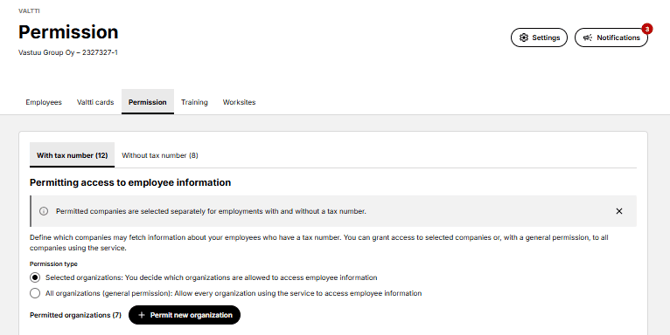
Please note that the company must grant permission to share information with the client or main contractor requesting the information.
-
Permission can be granted on the Permissions tab either to an individual company or, by granting general permission, to all companies using the service to access employee information.
You can read more about permissions here.
Registration history
-
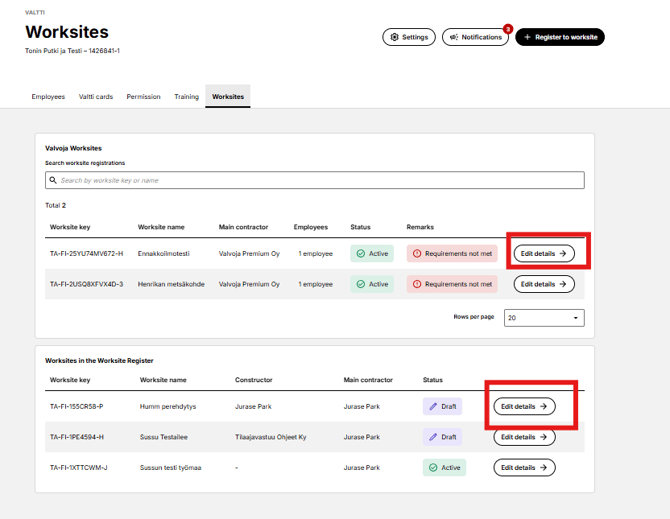
You can view all your worksite registrations under two headings:
-
Valvoja worksites = Pre-registration of the company and its employees in the Valvoja service.T
-
Työmaarekisteri worksites = Registration for a worksite for reporting to the Finnish Tax Administration.
-
- You can view or update the registration details by clicking Edit details at the end of the relevant row.