
Currently, the Valvoja service is available only in Finnish
- Sign In
- Creating a New Monitoring List
- Responsible Persons
- Monitoring Lists Menu
- Adding a Company to Monitoring
- Company Search
- Adding Multiple Companies to a Monitoring List
- Chain View
- Supplier Register (Toimittajarekisteri)
- Company Monitoring
- Reviewing Company Information
- Notes Fields
- Dun & Bradstreet Rating
- Removing a Company from a Monitoring List
- Report Archiving
- Ending Monitoring
Sign In
Sign in to your account and, on the customer portal home page, select Valvoja Standard and click Siirry Valvojaan (Go to Valvoja) →.

You can also access Valvoja via the Valvoja button in the top navigation menu.

Valvoja always opens in the main view. On the Valvonta (Monitoring) tab, you can find your created monitoring lists and monitored companies.
With a Valvoja Standard service level, you also have access to:
- Yrityshaku (Company Search)
- Toimittajarekisteri (Supplier Register)
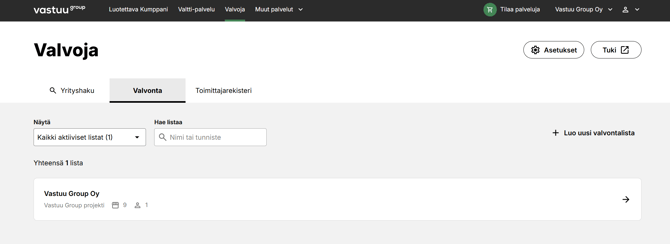
Monitoring in a Nutshell
Monitoring consists of four main steps:
- Create a monitoring list
- Add responsible persons
- Add companies
- Monitor company information on the monitoring list
Creating a New Monitoring List
On the Valvonta (Monitoring) tab, click +Luo uusi valvontalista (+ Create New Monitoring List).
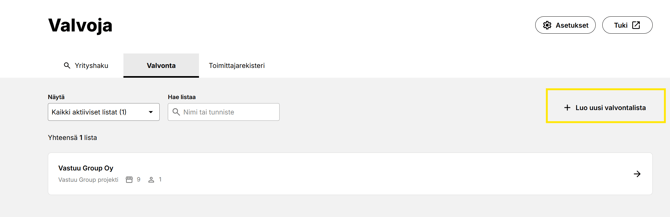
Image: Creating a new monitoring list
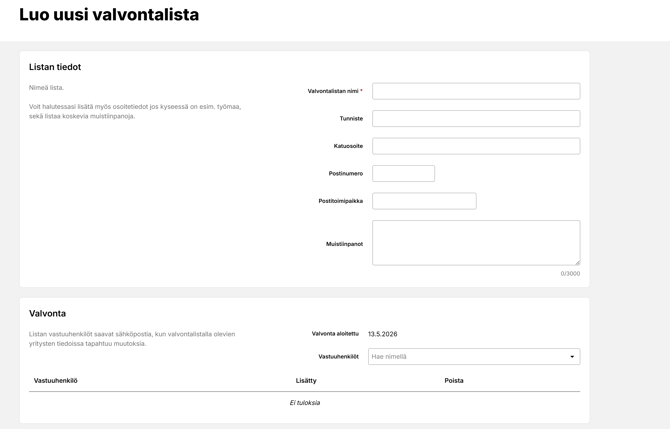
Enter the key information for the monitored entity:
- Monitoring List Name (required)
- Identifier (for example, your organization's project, property, or construction site identifier)
You may also add address information if the monitored entity is, for example, a construction site, as well as notes related to the monitoring list.
- Street Address
- Postal Code
- City
- Notes
Select the preferred Vastuuhenkilöt (Responsible Persons) from the list.
- Responsible persons are selected by adding users from the list. Only users with access to the Valvoja service are displayed.
- Once all required information has been entered, add the monitoring list by clicking Vahvista (Confirm).
Please note that the start date can never be in the past, as automated monitoring cannot be applied retrospectively.
The start date is automatically set to the date on which the monitoring list is created.
Responsible Persons
A responsible person receives email notifications when new issues or changes requiring attention are identified for monitored companies. It is recommended to assign more than one responsible person.
Any user with access to the Valvoja service can be selected as a responsible person. User accounts and access rights are managed in the account's Käyttäjähallinta (User Management) view.
In the Valvoja service, both main users and basic users can add and edit monitored entities.
Monitoring Lists Menu
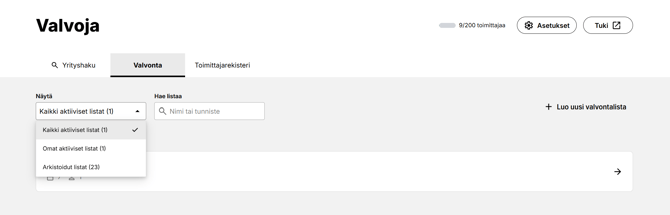
You can limit the number of monitoring lists displayed by using the Show filter in the main view of the Valvoja tab.
The number of visible monitoring lists can be filtered using the Näytä (Show) option.
|
Näytä (Show) |
|
|
Omat aktiiviset listat (My Active Lists ) |
Shows active monitoring lists where the user is a responsible person. |
|
Kaikki aktiiviset listat (All Active Lists) |
Shows all active items on the account. |
|
Arkistoidut listat (Archived Lists) |
Shows all completed items on the account |
Adding a Company to a Monitoring List
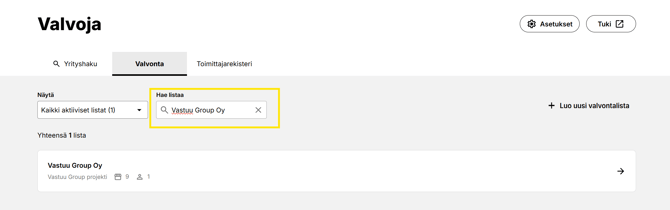
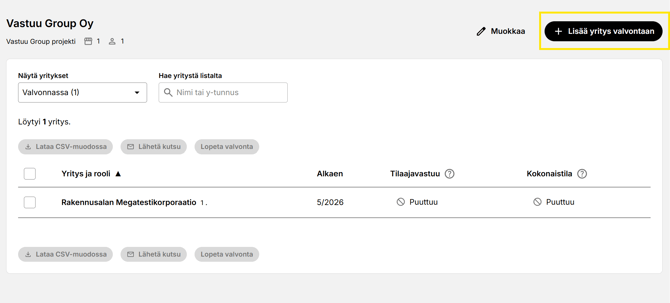
To add a company to the monitoring list, first select the preferred monitoring list from the menu. Then add the company to be monitored by clicking the Lisää yritys (Add company) -button.
Enter the name or identifier in the Hae listaa (Search list ) field.
Click + Lisää yritys valvontaan (+Add Company).
Add the company to the monitoring list.
You can search for a company using the Hae yritystä (Search company) button by Nimellä tai y-tunnuksella (company name or Business ID).
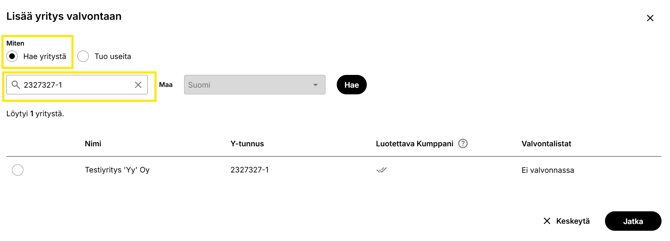
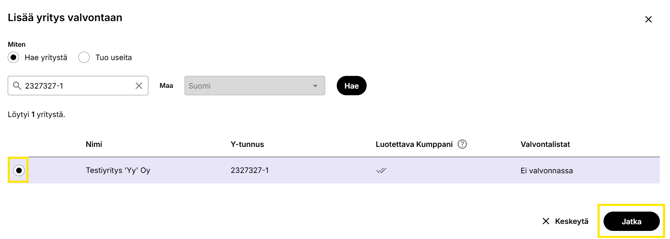
When searching by Business ID, a single company will be returned. Select the button displayed on the left side and click Jatka (Continue).
Yrityskortti (Company Card) of the company to be added to monitoring opens.
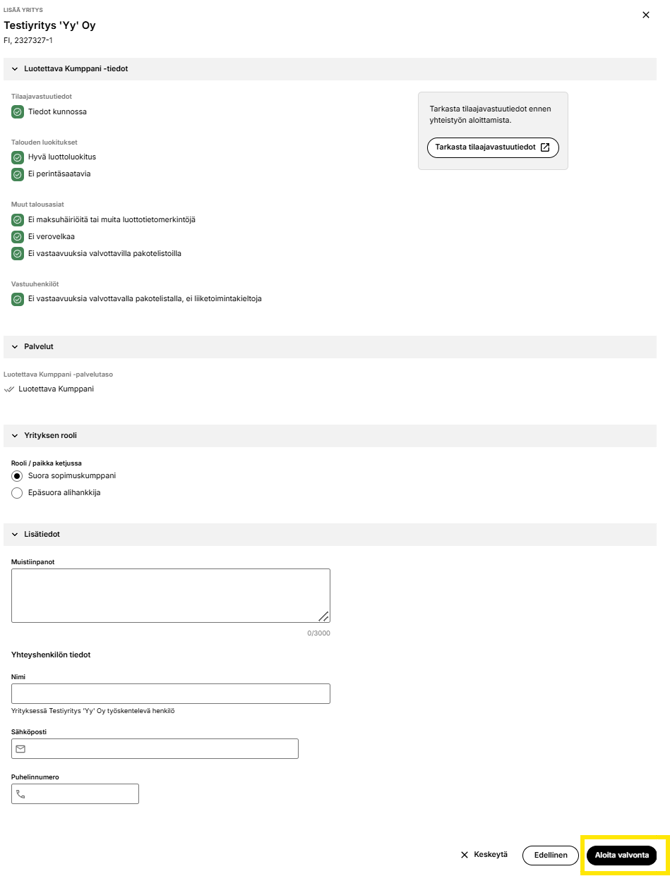
1. Define the Company's Role in the Supply Chain
- Suora sopimuskumppani = Direct contractual partner
- Epäsuora alihankkija = Indirect subcontractor
2. Enter Optional Supplier Contact Information
- Nimi (Yrityksessä työskentelevä henkilö)= Name(Employee working for the company)
- Sähköposti = Email
- Puhelinnumero = Phone number
Add the company to the monitoring list by clicking Aloita valvonta (Start Monitoring) button that appears on the right.
Important Notes
- Monitoring cannot be started in the past.
- The earliest possible start date is the current date.
- Monitoring must always be actively ended in the service.
- To comply with the Act on the Contractor’s Obligations and Liability, monitoring should be started no later than the contract signing stage.
- The most important requirement is that a valid report has been reviewed and archived at the time the contract is concluded.
- For contractual relationships lasting longer than one year, monitoring must be carried out regularly.
- Contractor’s liability information must be reviewed at least once per year.
Company Search
Using Yrityshaku (Company Search), you can search for company information by nimi tai y-tunnus ja maa Suomi (company name or Business ID (Finland).
Tarkennettu yrityshaku (Advanced Company Search)
-
Search among more than 100,000 Finnish companies.
-
Identify potential suppliers and partners based on selected criteria.
The advanced search allows you to filter companies by:
- Toimiala = Industry
- Paikkakunta = Location
- Henkilöstön määrä = Number of Employees
- Liikevaihto = Revenue
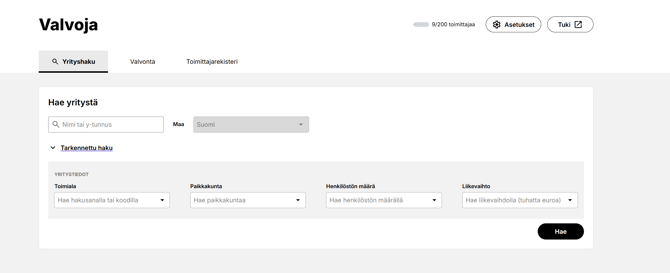
You can also add companies to monitoring lists through Tarkennettu yrityshaku (Advanced Company Search).
-
Search for a company using the company name, Business ID, or Advanced Search.
-
Select the preferred company.
-
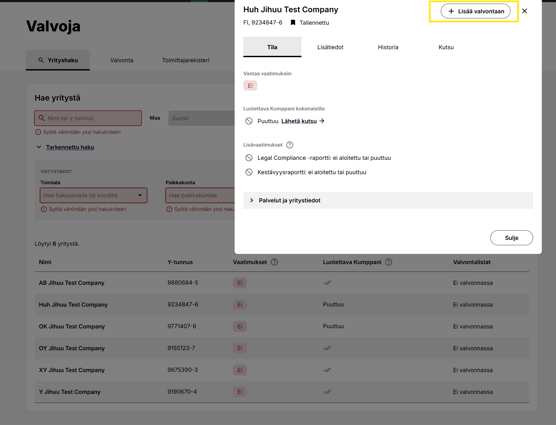
Yrityskortti (Company Card) opens in the Tila (Status) view.
-
Click + Lisää yritys valvontaan (+ Add Company to Monitoring).
-
Once you add a company to monitoring, it will appear on the selected monitoring list. You can find your monitoring lists on Valvonta (Monitoring) tab.
Adding Multiple Companies
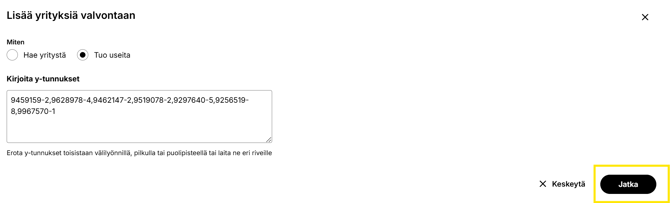
You can speed up importing information for monitored companies by adding multiple companies to monitoring at once using Tuo useita y-tunnuksia (Import multiple Business IDs).
Separate the Business IDs with a space, comma, semicolon or enter each one on a separate line. Once all Business IDs have been entered, select Jatka (Continue).
Please note that Business IDs must be in the format 1234567-8 for the system to accept them.
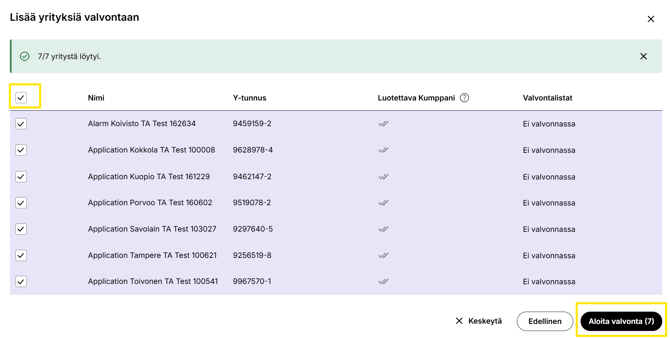
Add the companies to the monitoring list by selecting them using the button located in the upper left corner.
Once the companies have been selected, click Aloita valvonta (Start monitoring).
Chain View
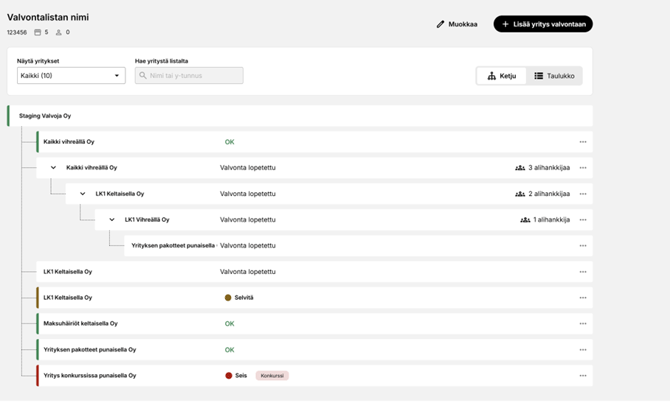
Ketjunäkymä (Chain View) is displayed in the list view using levels 1–4.
- The separate Ketjunäkymä (Chain View) provides a visual representation of the supply chain structure.
- The chain depth is limited to four levels. Deeper supply chain hierarchies are not supported.
- However, users can add multiple companies to the same level, and there is no limit to the number of companies at a single level.
Supplier Register (Toimittajarekisteri)
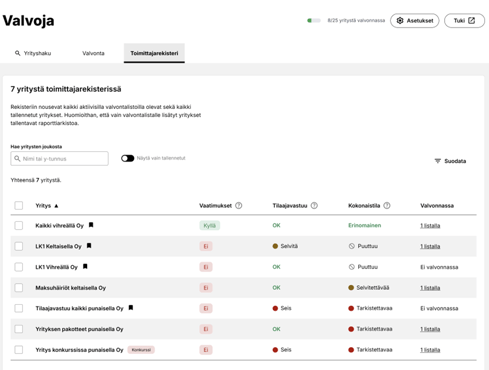
The Supplier Register contains the entire supply chain of the Monitoring customer, including companies under active monitoring and companies for which monitoring on the active monitoring list has been discontinued.
Companies in the Supplier Register can be filtered by the monitoring period.
Potential suppliers can also be saved separately to the Supplier Register using Tallenna (Save) icon on Yrityskortti Company Card.
- Saved companies do not accumulate a report archive.
- Saved companies can be added to monitoring later.
Company Monitoring
Contractor Obligation Information
- Reports for monitored companies are archived until the company is removed or the Valvoja service is terminated.
- Each company card contains a button for viewing reports.
- The color and label indicate the status of the latest contractor obligation report.
- Valvoja sends notifications to responsible persons when a company's status changes for the worse.
- Reliable Partner customers are also informed of deficiencies.
The question mark icon provides additional information:
- Luotettava Kaumppani (Reliable Partner) report status
- Whether the company has left the Luotettava Kaumppani (Reliable Partner) - service
- Additional information on report interpretations

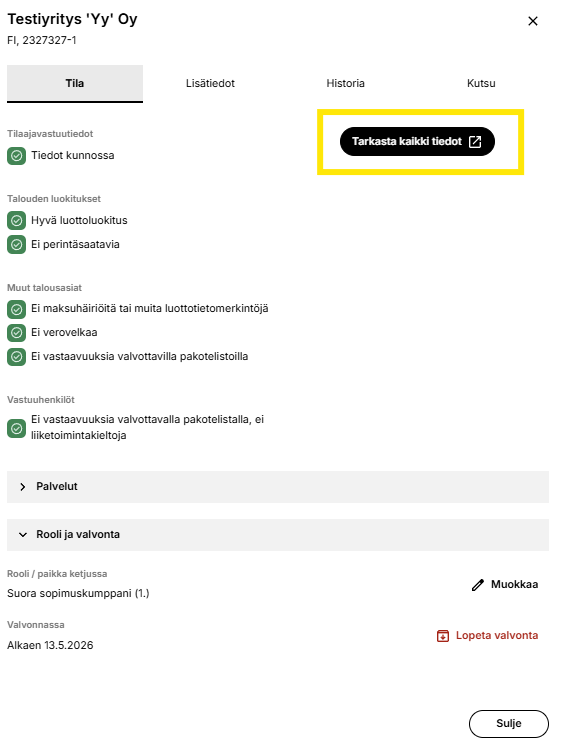
When the preferred company is selected from the monitoring list, the company's Yrityskortti (Company Card) opens.
Clicking Tarkasta kaikki tiedot (Review all information) button opens Luotettava Kumppani (Reliable Partner) report.
Status button colors and their meanings:
Tilaajavastuu = Contractor's Obligations
OK = OK
Huomio = Notice
Odottaa = Pending
Selvitä = Clarify
Seis = On hold
Puutuu = Missing
Kokonaistila = Overall Status
Huomioitavaa = Points to Note
Selvitettävää = Requires Clarification
Tarkistettavaa = Requires Review
Puutuu = Missing
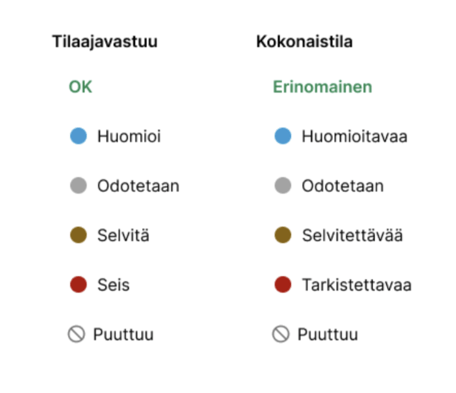
Picture: Contractor's Obligations and Overall Status - Colors and Interpretations
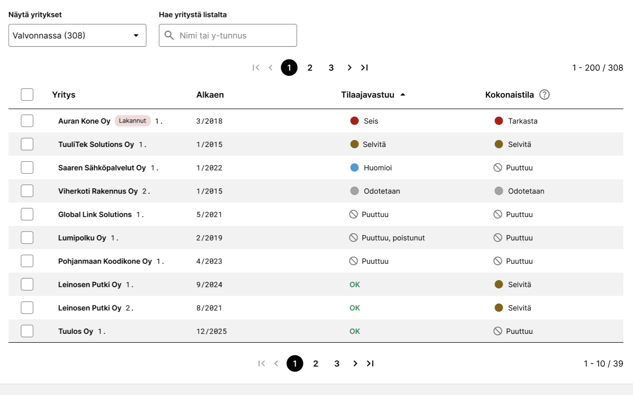
Picture: Interpretations of Contractor's Obligations and Overall Status for monitored companies in the list view
Overall Status Information
To the right of Luotettava Kumppani (Reliable Partner) contractor obligations status, Kokonaistila (overall status) of the company's Luotettava Kumppani (Reliable Partner) report is displayed if the company has subscribed to the service.

Read more about overall statuses here.
Reviewing Company Information
You can view the company and its status information as follows:
- Click the company name.
- Yrityskortti (Company Card) opens.
- Select the Tila (Status) tab to see all status interpretations.
- Optionally open the latest report via Tarkasta kaikki tiedot (Review All Information).
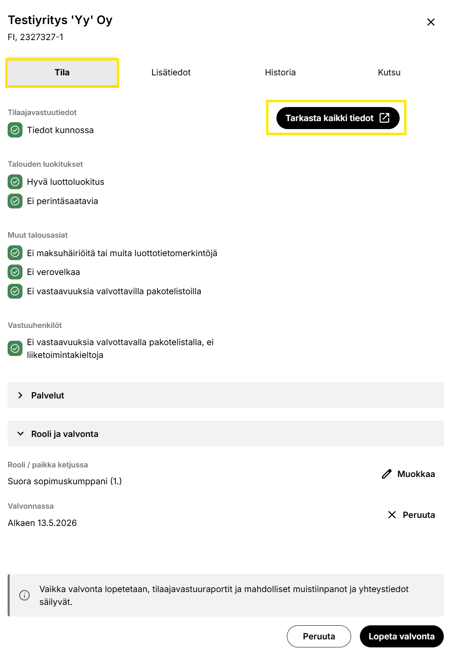
Notes Fields
You can add your own notes to a monitoring list and to the companies on the list using the notes field. Notes can be added to a monitoring list when creating the list. For an active monitoring list, the notes field can be found by selecting "Muokkaa valvontalistan tietoja" (Edit Monitoring List Details).
To add notes to an individual monitored company, first click the company name. In the view that opens, a text field for notes is available at the bottom of the page.
The notes fields are visible to all users within your company who use Valvoja. Therefore, only add information that can be shared with all Valvoja users. The fields can also be edited by all Valvoja users.
Dun & Bradstreet Rating
In addition to the information required by the Act on the Contractor’s Obligations and Liability, Valvoja enables you to monitor suppliers’ creditworthiness using credit rating information based on the Dun & Bradstreet Rating model.
This feature helps support risk management and provides valuable additional information for procurement decision-making, alongside the information required under the Act on the Contractor’s Obligations and Liability.
D&B Rating information is available only with the Valvoja Standard servicelevel.
Removing a Company from a Monitoring List
You can remove a company from the Monitorinf as follows:
- Click the company name from any list view.
- Yrityskortti (Company Card) will open.
- Scroll to the bottom of the card and click Lopeta Valvonta (Stop Monitoring).
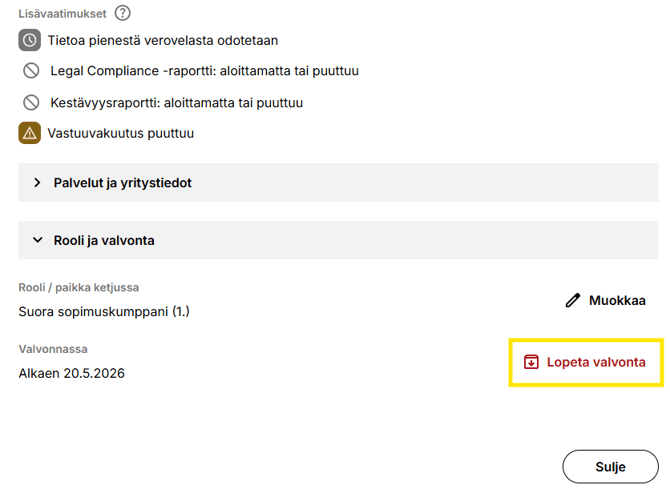
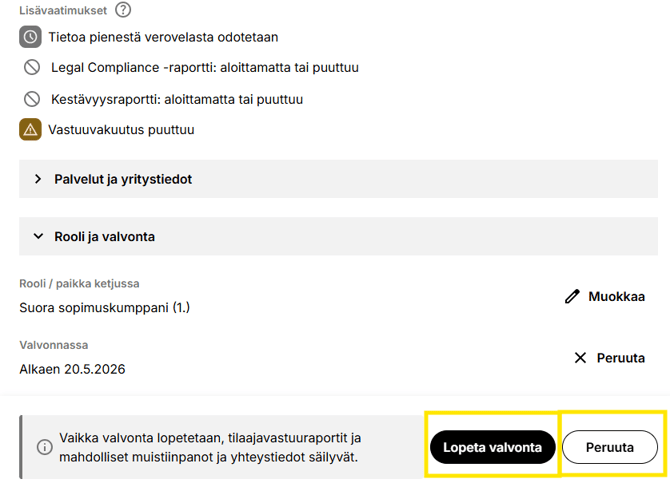
- Confirm that you want to stop monitoring by clicking Lopeta Valvonta (Stop Monitoring).
- If you do not want to stop monitoring, click Peruuta (Cancel).
Report Archiving
If necessary, you can download and save the reports for your own records.
Currently, reports can be saved only manually, and bulk downloading is not available.
If the company is still under monitoring, first remove the company from the monitoring list according to the instructions in Removing a Company from a Monitoring List.
The company will then be moved to the Valvonta lopettu (Monitoring Ended list).
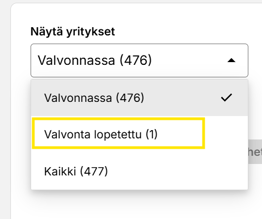
Open the list and open Yrityskortti (Company Card ) of the company whose reports you want to save.
-
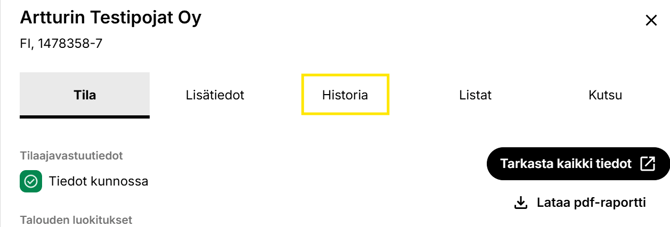
Select Historia (History) tab.
- Open the reports one by one using the Import icon.
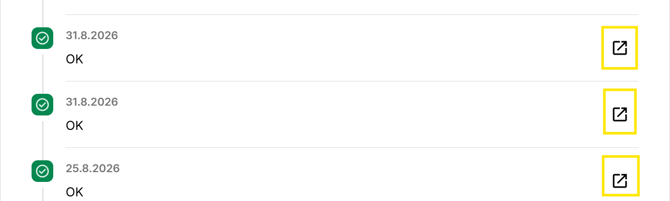
- Luotettava Kumppani (Reliable Partner) report opens in a separate window, from which you can save the report to your own system.
Using Näytä raportit kaikilta valvontalistoilta from all monitoring lists function on Historia (History) tab, you can display all reports for the selected company from all monitoring lists at once.
Ending Monitoring
Ending the monitoring of a monitored company
Click the company name from any list view.
- Yrityskortti (Company Card ) opens.
- You can stop monitoring the company by clicking Lopeta valvonta (Stop Monitoring) button.
- The company will be moved to the Valvonta lopetettu (Monitoring Ended) status on the monitoring list. You can later find it on the same monitoring list using Valvonta lopetettu (Monitoring Ended) filter.
No further alerts are sent, but archived reports remain available.
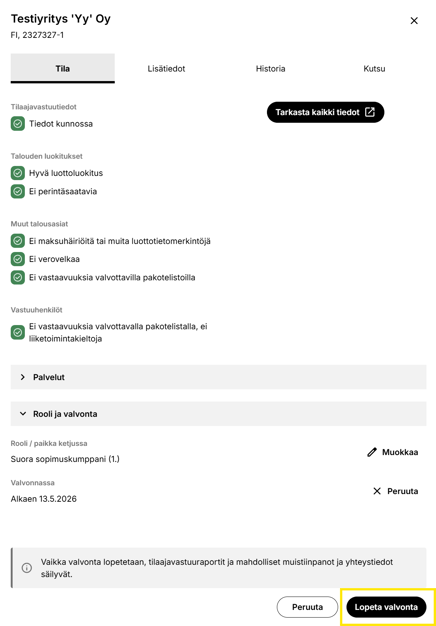
Removing a Monitored Company from a Monitoring List
A company can be removed only after monitoring has been ended.
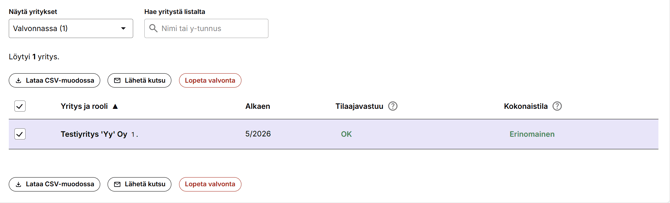
- Näytä yritykset (Show Companies) → Valvonta lopetettu (Monitoring Ended)
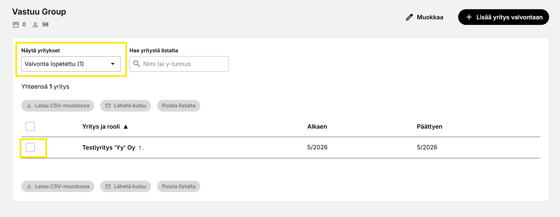
Picture: Removing a Company Completely
To remove a company from the list, click the name of the monitored company and select Poista yritys listalta (Remove Company from List).
If you want to complete the action, click Poista yritys ja raportit (Remove Company and Reports) in the pop-up window that appears.
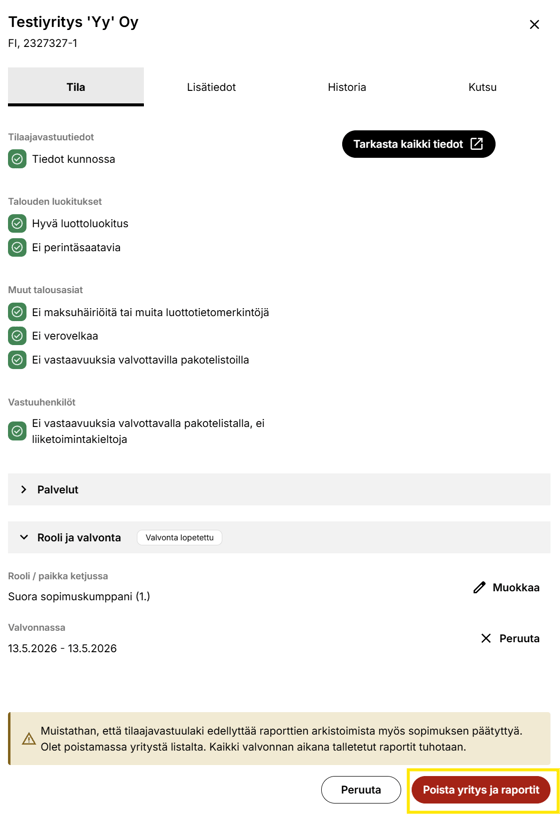
Picture: Removing a Company from the Monitoring List
When a company is removed, all reports stored during the monitoring period will be permanently deleted.
- If the company is part of a chain and has other partners linked beneath it, the data for those companies will also be deleted.
Closing a Monitoring List
A monitoring list does not expire automatically, and it is not possible to set an end date for it. The monitoring list must be archived separately.
- Open the monitoring list.
- Click Muokkaa (Edit) monitoring list.
- Click Lopeta listan valvonta (Stop List Monitoring).
- Vahvista (Confirm).
- The archived monitoring list can later be found on Valvonta (Monitoring) tab under Näytä arkistoidut listat (Show Archived Lists).

Picture: Ending a Monitoring List, “Stop List Monitoring”
When you archive a list:
- The reports saved during the monitoring period will be retained.
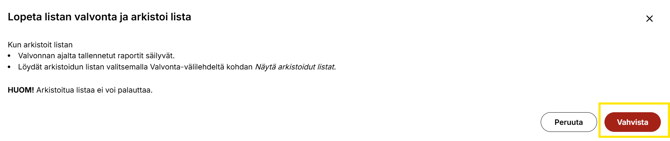
Picture: Ending Monitoring of a Monitoring List
You can find an archived list by selecting Näytä arkistoidut listat (Show Archived Lists) on the Valvonta (Monitoring) tab.
NOTE! An archived list cannot be restored.
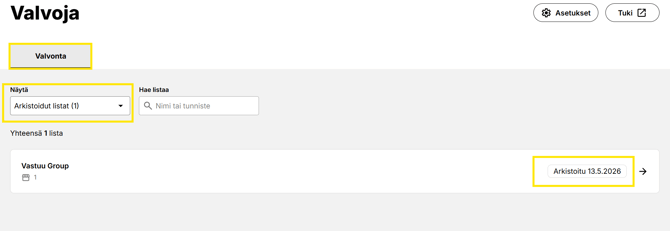
Picture: Archived Lists